
November 16, 2026
Google Business Profile Setup: A Simple Guide for Small Business

Google Business Profile Setup: A Simple Guide for Small Business
When a customer searches for a plumber, a salon, or a cafe near them, Google shows a map with three business listings first, each with a star rating, opening hours, and a phone button. That box is the Google Business Profile, and it is free. A proper google business profile setup takes about thirty minutes. This guide walks through the setup in six steps, explains verification, and shows what to add after the profile is live so customers actually call you.
What Is a Google Business Profile?
A Google Business Profile is the free listing Google shows for your business on Google Search and Google Maps. It is the box on the right of the search results on a computer, and the card at the top of the map on a phone. It shows your business name, category, address, phone number, website, opening hours, photos, and customer reviews, with buttons to call, get directions, or visit your website.
The profile matters because most local searches never reach a website. Customers compare the three listings in the map box and tap the one that looks best. The average small business gets 1,009 searches a month through its profile, according to BrightLocal’s 2026 research, and most of those are discovery searches from people who have never heard of the business before. A complete profile earns 7 times more clicks than an incomplete one, also according to BrightLocal.
Google Business Profile Setup in 6 Steps

Follow these steps in order. You need a Google account, your business name, address, phone number, and website address before you start.
- Go to Google Business Profile and start. Open business.google.com, sign in, click “Manage now”, and type your business name exactly as it appears on your shop sign.
- Choose your business category. Pick the category that matches what you actually do, such as “Plumber” or “Hair salon”. The category decides which searches your profile shows up for, so choose the closest one, not the broadest.
- Add your location. If customers visit you, add your full street address. If you visit customers instead, choose “service area business” and list the areas you serve. Then add your phone number and website address.
- Add your opening hours. Set your normal hours, and add special hours for holidays. Wrong hours are one of the most common complaints in reviews, so keep them accurate.
- Write a short description. Use plain words to say what you do and who you help, in two or three sentences. Do not stuff it with keywords or promises you cannot keep.
- Add photos and services. Upload a clear photo of your shop front, your logo, and a few photos of real jobs. Then list your main services with short descriptions.
Once these steps are done, your profile exists, but it is not yet verified. Verification is the next step, and Google will not show the profile in search results until it is done.
Verifying Your Google Business Profile
Verification proves to Google that the business is real and that you own it. The most common method is a postcard: Google mails a card with a code to your business address, and you enter the code in your profile. The card usually takes about five days to arrive, and the code is valid for about thirty days, so enter it as soon as it comes.
Some businesses can verify by phone or email instead, where Google sends a code to the number or address on file. Others are offered video verification, where you record a short video of your shop sign, your workspace, and proof that you work there. Whichever method Google offers, follow it exactly and do not try to skip it. A profile that is never verified stays hidden, and no amount of photos or posts will make it appear.
What to Add After Setup: Photos, Posts and Reviews
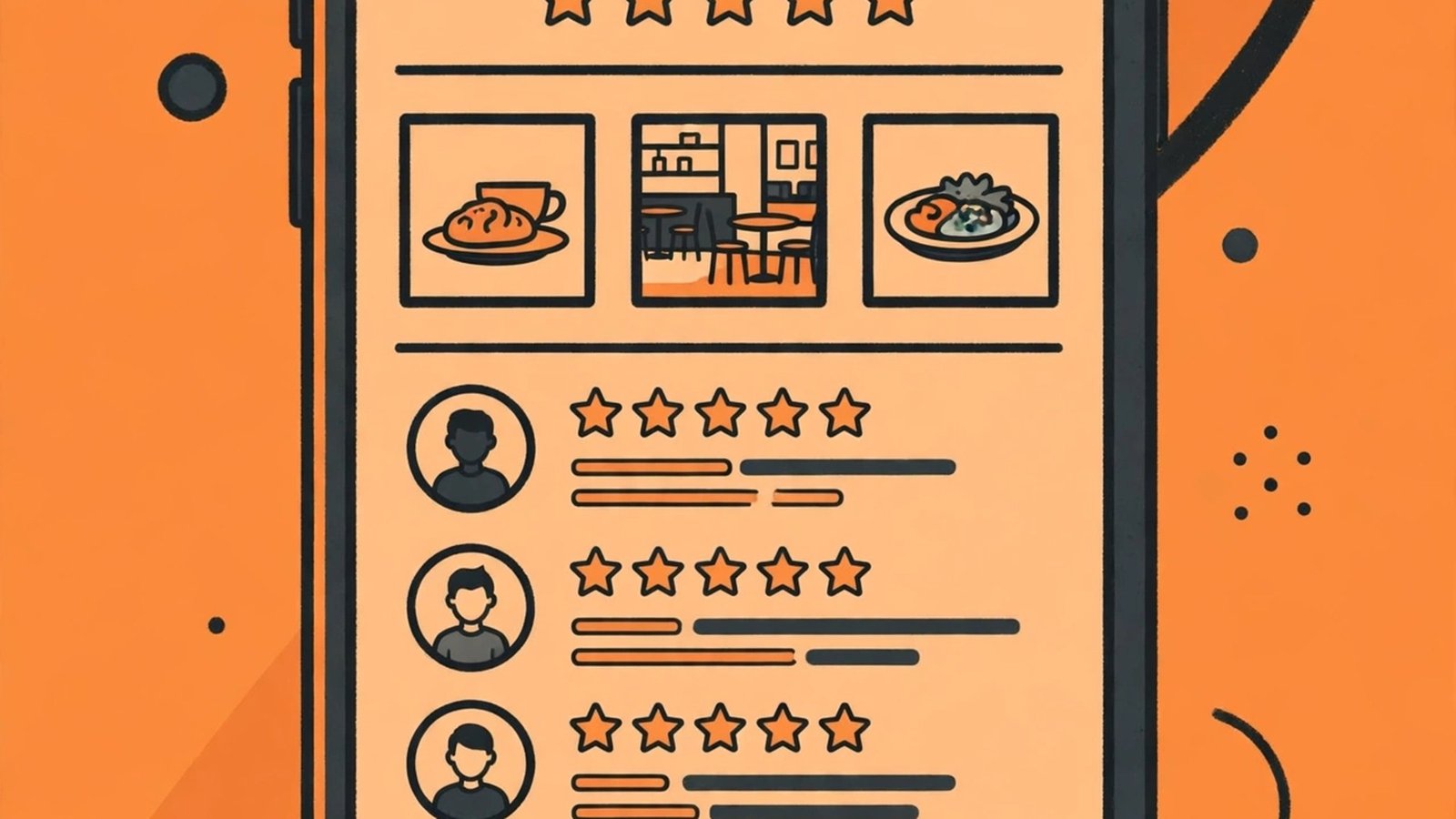
A live profile is only the start. The average profile generates 59 customer actions a month, according to BrightLocal: 20 website clicks, 16 direction requests, and 10 phone calls. Three things drive most of that activity.
First, photos. Profiles with photos get far more attention than empty ones. Add real photos of your work, your team, and your shop, not stock images, and add new ones every few weeks.
Second, posts. A Google Business Profile lets you publish short updates, offers, and news. A weekly post about a new service or a finished job takes five minutes. Posts expire after a while, so keep adding fresh ones.
Third, reviews. Ask happy customers to leave a review, and reply to every review you get, good or bad. Never buy reviews or write fake ones, because Google removes them and can suspend the profile. Real reviews, answered honestly, are the strongest part of a profile. Our guide to local SEO for small business explains how reviews and local search work together.
Google Business Profile Setup Mistakes to Avoid
The most common mistake is creating a second profile. If your business already has a listing, even an old one you did not create, claim it instead of starting a new one. Two profiles for one business confuse Google and split your reviews between them. Search for your business name on Google Maps first, and if a listing exists, click “Claim this business”.
The second mistake is using the wrong name. Your profile name must be your real business name, not a list of keywords. Adding words like “Best Plumber in Lahore — Cheap Rates” breaks Google’s rules and can get the profile suspended.
The third mistake is choosing the wrong category or adding too many. One main category that matches your core service is better than five loosely related ones. The fourth mistake is leaving the profile alone after setup. Hours change and photos go stale, so check the profile once a week.
Frequently Asked Questions
Is Google Business Profile free?
Yes. Creating and managing a profile costs nothing, including photos, posts, and reviews.
How long does Google Business Profile setup take?
The setup itself takes about thirty minutes. A verification postcard usually arrives in about five days, while phone, email, or video verification can be instant.
Can I set up a Google Business Profile without a shop address?
Yes. Choose the service-area option, list the areas you serve, and no street address is shown publicly. This suits businesses that visit customers.
What should I do if my business already has a profile I did not create?
Claim it. Search for your business on Google Maps, open the listing, click “Claim this business”, and follow the verification steps. Do not create a second profile.
A proper google business profile setup is thirty minutes of work that keeps paying off every month: your business shows up on the map, customers see your photos and reviews, and they can call you in one tap. Set it up, verify it, add real photos, and ask happy customers for reviews. If you would like help with your local search presence, take a look at the services Saharan1 offers or get in touch through our contact section.