
November 16, 2026
Free Video Editing Software for Beginners: 7 Tools That Cost Nothing

Free Video Editing Software for Beginners: 7 Tools That Cost Nothing
Good video editing software used to cost hundreds of dollars. Today, a beginner can edit a professional-looking video without paying anything, using free video editing software for beginners that runs on a laptop or a phone. The problem is choice: there are dozens of free editors. This guide compares the seven best free tools and walks through your first edit in five steps.
What to Look for in a Free Video Editor
Before you download anything, check four things. The first is the watermark. Some free editors add their logo to every video you export. CapCut’s free plan, DaVinci Resolve’s free edition, Shotcut, and iMovie export without a watermark, while Filmora’s free version adds one, so always check first.
The second is the learning curve. DaVinci Resolve can do almost anything, but a beginner can feel lost in its many pages. CapCut is easy on day one but limited for longer projects.
The third is your device. DaVinci Resolve needs a fairly strong machine, while Clipchamp runs in a browser and CapCut runs well on most phones. The fourth is the export: check that the free plan lets you export in 1080p.
The 7 Best Free Video Editing Software for Beginners
1. CapCut — best for social videos. CapCut is free on desktop, web, and mobile, with a simple timeline, captions, and templates made for TikTok, Reels, and Shorts. The paid plan starts at $19.99 a month, according to LinkVetted’s November 2026 guide. It is the fastest route from a phone clip to a posted video.
2. DaVinci Resolve — best free professional editor. DaVinci Resolve’s free edition is the strongest free desktop choice, according to LinkVetted’s November 2026 guide, with professional editing, colour grading, and audio tools, all free. The cost is time and hardware: the interface uses separate pages, so a new user can feel lost at first, and it needs a strong computer.
3. iMovie — best for Apple users. iMovie is free on Mac and iPhone, and it comes bundled with every Apple device. It is simple, stable, and good enough for most beginner videos.
4. Clipchamp — best browser editor. Clipchamp is free and runs in a browser on Windows, so there is nothing to install. It is a good starting point for Windows users who want a clean editor without a download.
5. Shotcut — best fully free desktop editor. Shotcut is fully free and open source for Windows, Mac, and Linux. There is no paid version and no watermark.
6. OpenShot — best for simple edits. OpenShot is free and open source, built for simple edits: trimming clips, adding titles, and putting a video together quickly.
7. Filmora — best for templates. Filmora is built for creators who want a good-looking video without learning a professional suite first. The free version is best treated as a trial, because exports carry a watermark, and the paid plan starts at $9.99 a month, according to LinkVetted’s November 2026 guide.
For comparison, Adobe Premiere Pro costs from $22.99 a month, and Final Cut Pro is $299.99 one-time for Mac, according to the same guide. You do not need either to start.
Free Video Editing Software for Beginners on Phones
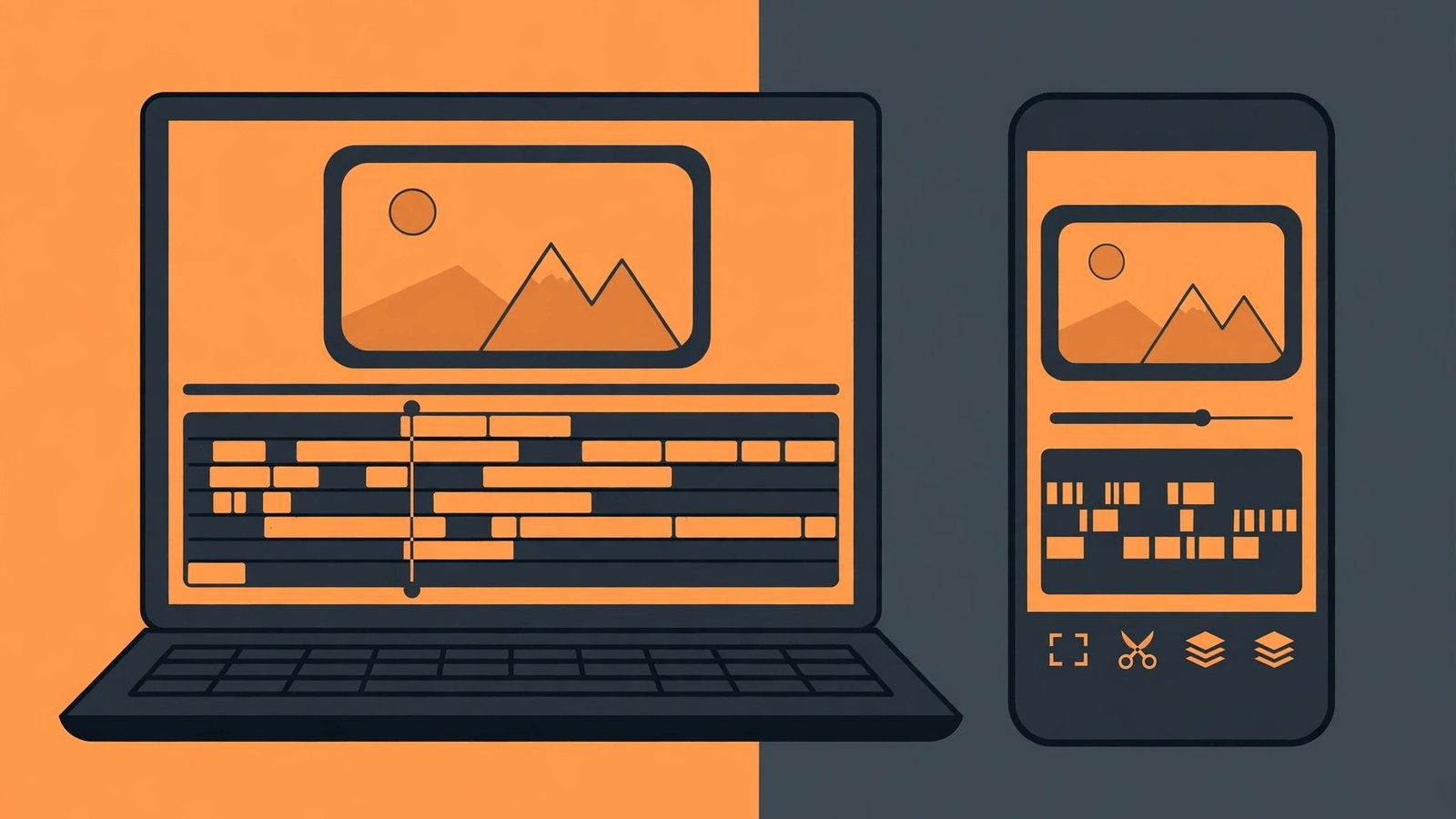
Most beginners edit on a phone, and the phone editors are now good enough for real business videos. CapCut is the best phone editor for short social videos, with captions, templates, and music built in. iMovie on iPhone is the simplest choice for Apple users, and it exports clean video with no watermark.
Phone editing suits short videos: a 60-second product clip or a TikTok. For longer videos, a laptop editor is faster. A good workflow is to film on your phone, do a rough cut in CapCut, then move to a laptop for the final version if the video is longer than two minutes. Our guide on how to make YouTube Shorts covers filming short vertical videos, and our MP4 video compressor guide explains how to shrink a finished video for WhatsApp and email.
How to Edit Your First Video in 5 Steps
Editing is simpler than it looks. Follow these steps for your first video.
- Import your clips. Open your editor and import the clips you filmed. Delete the ones that are blurry or shaky before you start.
- Cut the dead air. Drag the clips onto the timeline and cut out the pauses and false starts. A video with the pauses removed feels twice as fast.
- Add captions. Most free editors can add captions automatically. Captions matter because many people watch with the sound off. Check them for mistakes before you export.
- Add music and a title. Pick one quiet music track from the editor’s free library and keep it low under your voice. Add a short title at the start.
- Export and watch once. Export in 1080p, then watch the whole video on your phone before you post it. One careful watch catches most beginner mistakes.
Your first video will not be perfect, and that is fine. The second one will be better, and by the tenth, the five steps will feel automatic.
Mistakes That Waste Your First Edit
The most common mistake is choosing the hardest tool first. A beginner who opens DaVinci Resolve on day one often spends a week learning the software instead of making a video. Start with the simplest tool that can make the video you need.
The second mistake is editing every frame. One clean cut, one music track, and one title are enough for a first video. The third mistake is ignoring the audio. Bad audio ruins a video faster than a soft picture, so record in a quiet room and check the sound with headphones before you export.
The fourth mistake is never finishing. A finished video posted today teaches you more than a perfect video that stays on your phone. Post it, read the comments, and make the next one better.
Frequently Asked Questions
What is the best free video editing software for beginners?
CapCut is the best first choice for social videos, iMovie for Apple users, and DaVinci Resolve’s free edition for professional power without paying.
Is free video editing software really free?
Mostly. CapCut, DaVinci Resolve’s free edition, Shotcut, OpenShot, iMovie, and Clipchamp are free to use and export. Some tools, like Filmora, add a watermark to free exports, so check before you start.
Can I edit videos on my phone for free?
Yes. CapCut, iMovie on iPhone, and VN Video Editor are all free on phones and good enough for short social videos.
Do I need a powerful computer to edit videos?
It depends on the tool. DaVinci Resolve needs a fairly strong machine, while CapCut, Clipchamp, and Shotcut run on ordinary laptops.
Free video editing software for beginners means there is no excuse left to wait: pick the simplest tool that fits your device, film one short video, cut the dead air, add captions, and post it. If video is part of your marketing, take a look at the services Saharan1 offers or get in touch.