
November 15, 2026
Free Background Remover: Clean Product Photos in Seconds
Free Background Remover: Clean Product Photos in Seconds
A free background remover is the fastest way to turn an ordinary product photo into a clean, professional image. You upload a picture, the tool removes the background in seconds, and you download a transparent PNG ready for your website, your online shop or your social media. No design skills, no paid software, no sign-up. This guide explains what a free background remover does, how to use one well, and when a free tool is all you need.
What Is a Free Background Remover?
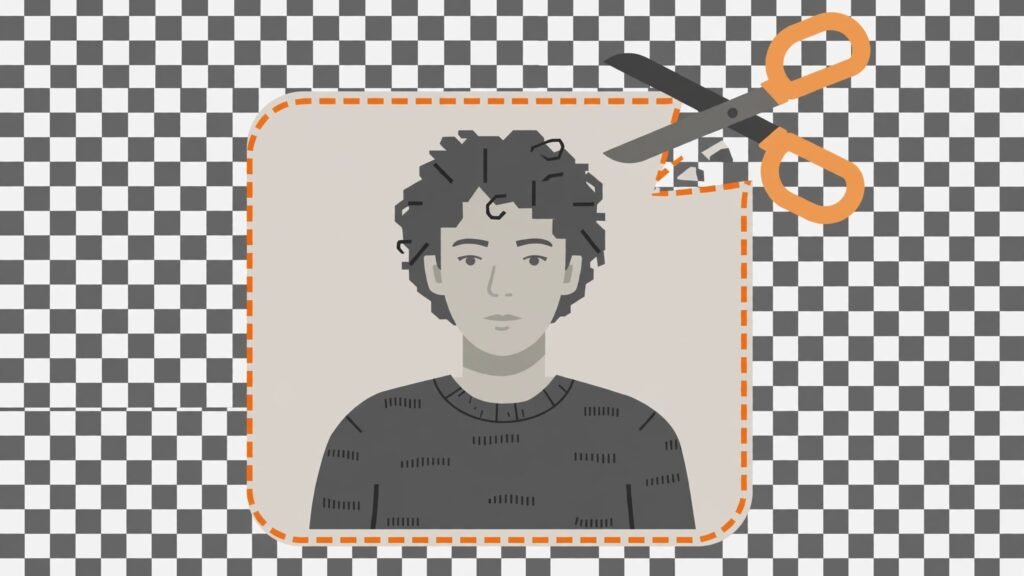
A free background remover is an online tool that separates the subject of a photo from its background and deletes the background, leaving a transparent image behind. Most work automatically, using a segmentation model — software trained to tell the foreground apart from the background — to do the cutting in a few seconds.
The demand is large. The phrase “free background remover” is searched about 110,000 times a month in the United States, and keyword research rates its difficulty at 68 out of 100 — high, because many established tool sites compete for it. Product sellers, restaurants, coaches and creators all want clean images without paying a designer every time.
A good free tool asks for nothing in return: no account, no email address, no payment details. You open the page, upload a photo, and download the result. That is exactly how our background remover works — free, with no sign-up. Our guide to logo design cost for small business explains what good brand images are worth.
How to Use a Free Background Remover in 4 Steps
Using a free background remover takes about a minute. Here are the four steps.
- Pick a sharp, well-lit photo. Choose a picture where the subject stands out from the background. A product on a plain table in daylight is ideal.
- Upload it to the tool. Open our free background remover, click upload, and select your image. The tool removes the background automatically in seconds.
- Check the edges closely. Zoom in around hair, thin straps, glass, fur and jewellery. These fine details are where automatic tools struggle most.
- Download as a transparent PNG. Only PNG keeps the background transparent. A JPG fills the empty area with white, so always choose PNG when you download.
Keep your original photo too. If you ever need a different crop or a new background colour, you can run the original through the tool again.
What Makes a Good Free Background Remover?
Not all free tools are equal. The first thing to check is the output quality: clean edges, no leftover patches of background, and hair and fine details handled well. Test a tool before you trust it with your best product shots.
The second thing is the limits. Many free background removers cap the number of images, cap the resolution, or add a watermark to the result. Those limits are normal for free tiers, but you should know them before you rely on a tool. A free tool with no sign-up and no hidden limits is worth bookmarking.
The third thing is privacy. You are uploading photos of your products, and sometimes of your team or your customers. A tool that lets you download your image without creating an account or handing over an email address is the safer choice. Finally, check that the download is a real transparent PNG at a useful size — a tiny, low-resolution cut-out will look blurry on your website.
Free Background Remover Tips for Product Photos
The tool does the cutting, but the photo you feed it decides the result. Good light is the biggest factor: take product photos in daylight, and the tool will find clean edges. Dark, yellow indoor light makes everything harder.
Use a plain background when you shoot. A single-coloured wall or a plain table top works well. Busy backgrounds full of objects in similar colours to your product confuse the tool. A contrasting background colour solves it instantly.
Leave space around the product. Do not crop tightly before you upload, because the tool needs a little background on every side to tell where the product ends. You can crop the finished cut-out afterwards. Use the highest resolution your phone offers: small, compressed photos lose fine detail first, and hair and jewellery suffer most. Clean photos also make your listings look more trustworthy. Our guide to building an ecommerce website for small business shows where good product images matter most.
When a Free Tool Is Enough — and When It Is Not
For most small businesses, a free background remover is enough. Product photos, social media posts, flyers, price lists, menus and profile pictures are all jobs a good free tool handles well. If you process a handful of photos a week and the results look clean, there is no reason to pay.
A paid tool or a designer is worth considering in a few cases. Glass, mirrors and chrome are hard for automatic tools because they reflect the background. Large batches of hundreds of photos may need bulk processing. And a hero image for your homepage deserves extra care with lighting, edges and resolution.
Even then, start free. Run your photos through a free tool first and look at the results with fresh eyes. If they are clean, you have saved money. If a few tricky photos need help, you will know which ones to spend on. Let it do the everyday work, and spend only where it shows its limits.
Frequently Asked Questions
Is a free background remover really free?
Many are, but the limits differ. Some cap the number of images, cap the resolution, or add a watermark. Our background remover is free with no sign-up, so you can try it on as many photos as you like.
What file format should I download?
Always PNG. A transparent PNG keeps the empty area see-through, so you can place the image on any background or colour. A JPG cannot keep transparency — it fills the empty area with white.
Can I use a free background remover on my phone?
Yes. These tools run in your phone’s browser, so you can upload a photo, remove the background and download the PNG without installing an app. Photos taken on a modern phone are sharp enough for a clean cut-out.
Why do some photos come out with rough edges?
Usually the photo is dark, blurry or low-resolution, or the subject is a similar colour to the background. Re-shoot with good daylight and a plain contrasting background, and the edges will come out far cleaner.
Final Thoughts
A free background remover turns a fiddly design job into a one-minute task: upload a clear photo, check the edges, download a transparent PNG, and your product is ready for your shop, your posts and your flyers. Start with good light and a plain background, and the tool will do the rest. Try our free background remover now — no sign-up, no cost. If you would like help making your whole brand look this clean, take a look at the services Saharan1 offers or get in touch through our contact section.